
5 Android Auto Settings to Change ASAP (2026 Update)
by AutoExpert | 15 January, 2026
Millions of people use Android Auto every day to handle maps, music, and calls without touching their phone. It's pretty handy when it works right, but the way it comes out of the box? Kind of a mess.
Maybe music starts blaring the second the car turns on. Maybe finding the right app means scrolling through a bunch of stuff that never gets used. Little annoyances like this pile up fast.
Good thing most of it's fixable once you know where to dig around in the settings.
That Boring Grey Background
The default wallpaper is fine if you're into generic grey, but there are way better options sitting right there in the settings. Android Auto has a bunch of pre-loaded backgrounds—mountains, forests, abstract stuff. Or just pull whatever's already on the phone.
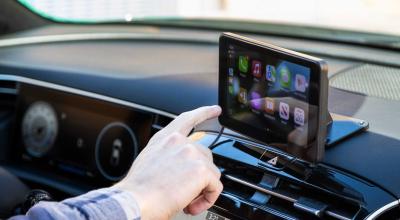
Changing it takes like 10 seconds. Tap the app launcher on the car screen, go to settings, hit general, and pick something new. Want a personal photo? Set it as the phone wallpaper first, then flip the switch to use it in Android Auto.
Shortcuts Beat Voice Commands
Voice stuff works okay until it doesn't. Road noise, accents, mumbling—the assistant gets confused and does the wrong thing or just gives up.
Shortcuts are way better for things that happen all the time. One tap calls mom, starts navigation home, opens the garage. No talking required.
Setting them up happens on the phone. Find Android Auto in settings, tap customize launcher, add a shortcut. Pick a contact or type in whatever command makes sense.
Music Blasting When the Car Starts
There's nothing quite like getting in the car with someone and having last night's playlist blast at full volume before anyone's ready for it. Android Auto does this automatically with some "resume media" thing that nobody asked for.
Turning it off is easy. Settings on the phone, find Android Auto, kill the "start music automatically" toggle. If it keeps happening anyway, the music app itself might have its own autoplay setting that needs shutting off.
Too Many Apps Nobody Uses
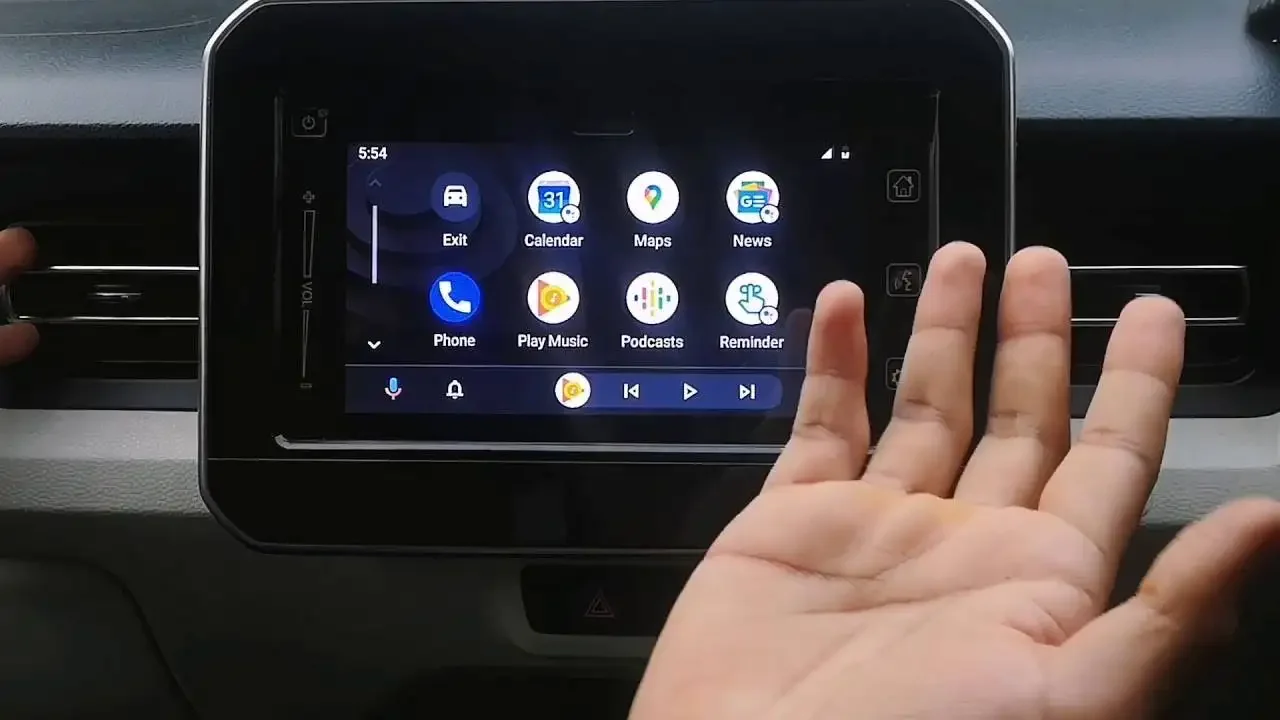
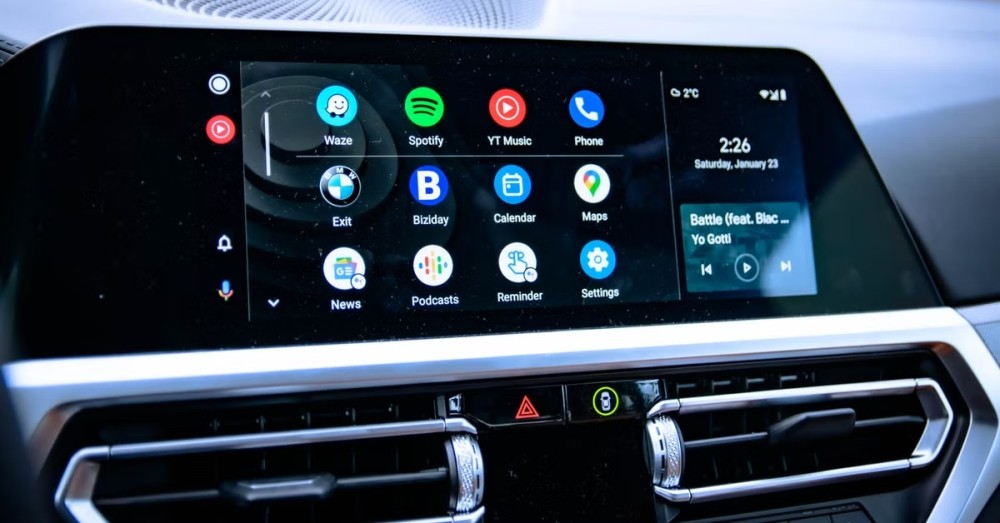
The app drawer shows literally everything that works with Android Auto, even apps that'll never get opened while driving. Finding the actual navigation app means scrolling past a bunch of random junk.
Hiding stuff doesn't mean uninstalling it from the phone. Just go into settings, customize launcher, and uncheck whatever shouldn't be there. Rearranging works too—drag things around so the good stuff shows up first.
Music Controls Without Losing the Map
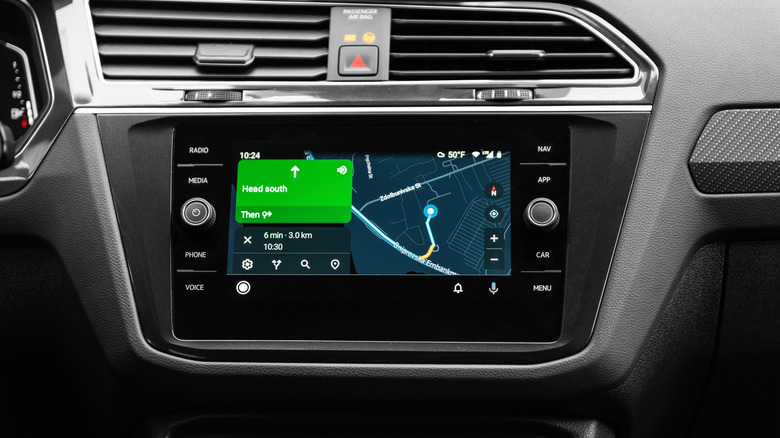
Skipping a song used to mean leaving the navigation screen, which was annoying for like half a second until the next turn showed up again. The taskbar widget fixes this.
Basically puts little music controls at the bottom so songs can get paused or skipped without ditching the map. Small thing, but it helps.
Flip it on in the phone settings under Android Auto with the "taskbar widgets" option. Or go straight to Android Auto settings on the car screen and turn on "show quick controls for apps."